Installation
Installation
NIS-Uploader is installed using the provided installer.
Checking latest installer version...
Install the Application
- Run the installer.
- Follow the setup steps.
- If you are asked about startup options, choose the ones your workplace prefers.
- Finish the installation.
After setup is complete, NIS-Uploader can be started from NIS-Elements.
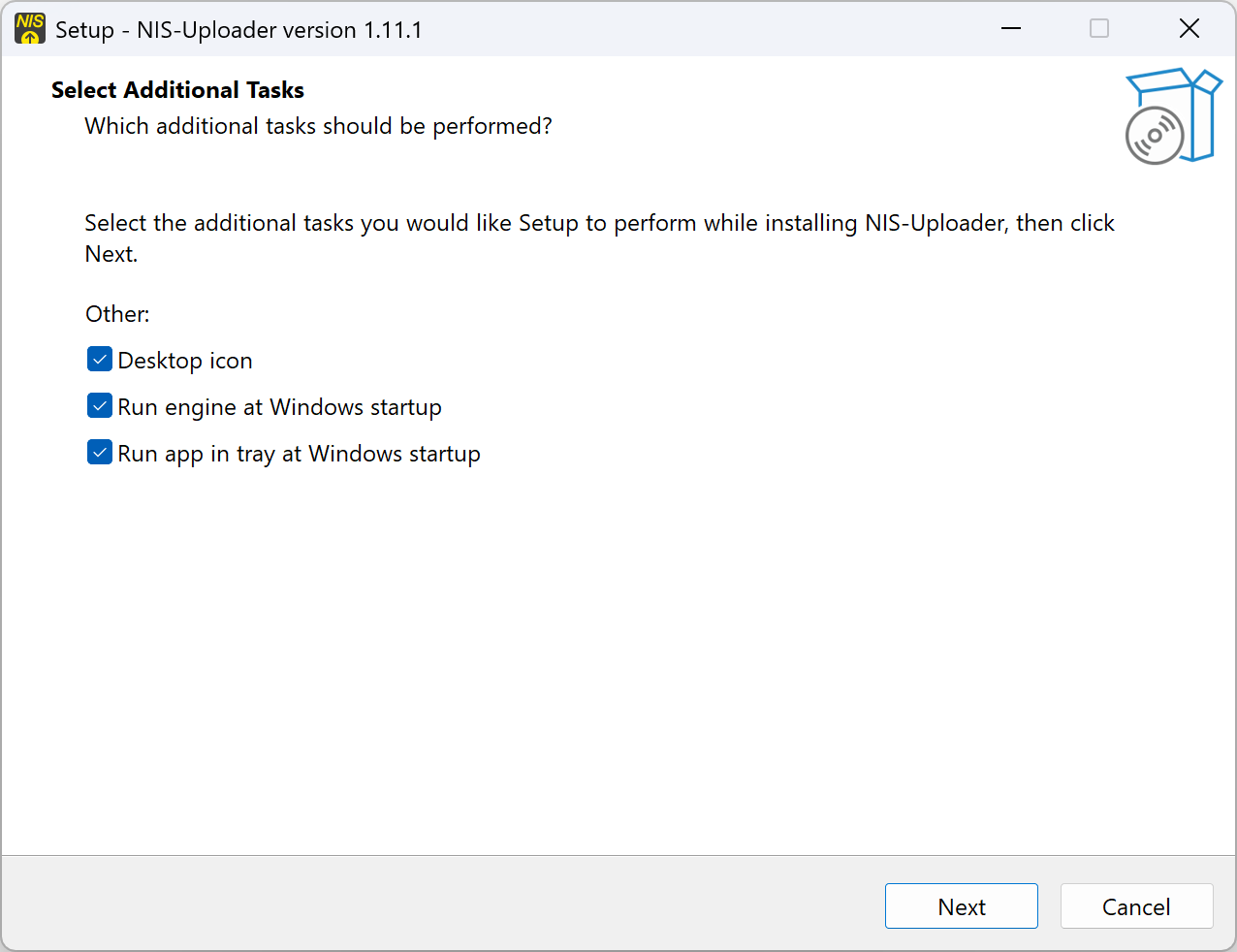
Startup Options During Installation
During installation, you may see options to:
- create a desktop icon
- start the engine automatically when Windows starts i
- start the tray application automatically when Windows starts i
Uninstall
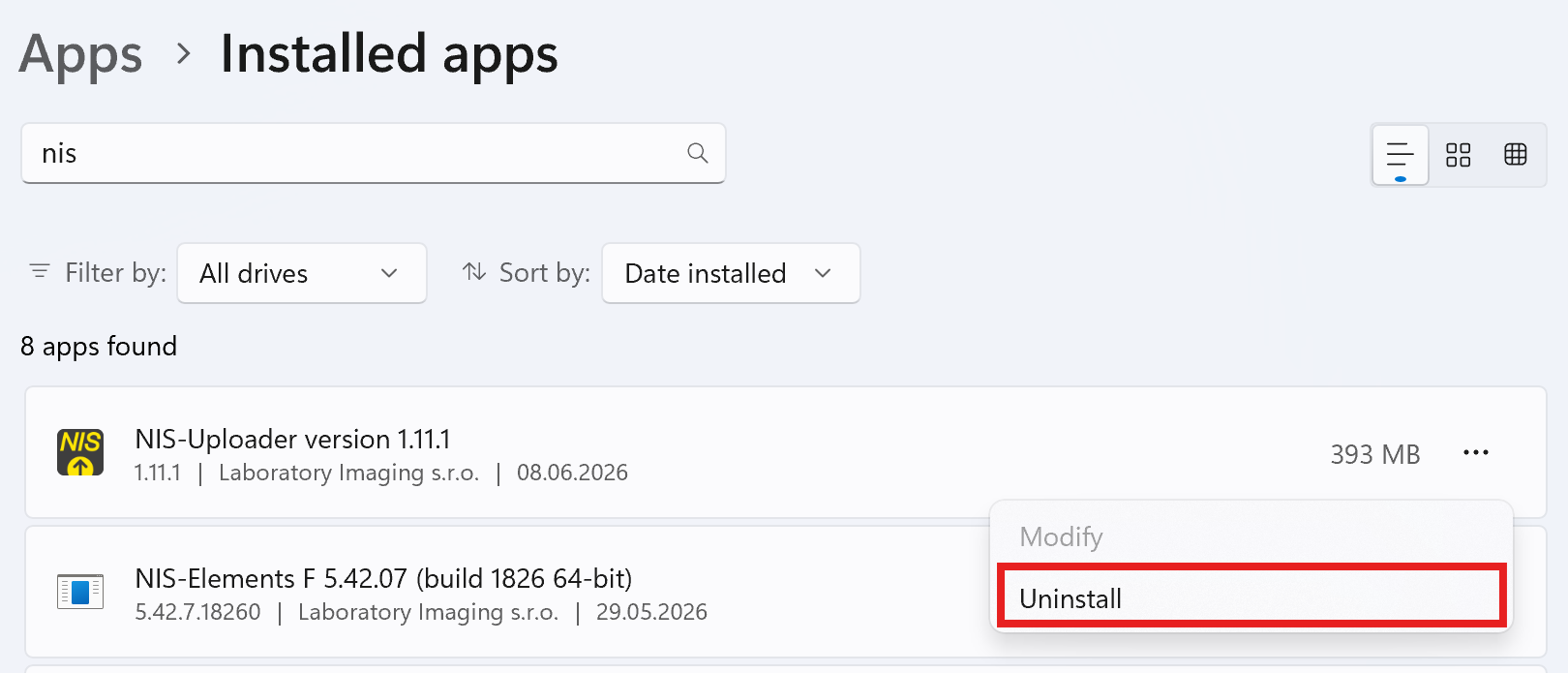
If you need to remove NIS-Uploader:
- Open the normal Windows installed apps list.
- Find NIS-Uploader.
- Choose Uninstall.